How to Track Direct Mail ROI With GA4: UTM Codes, QR Tracking & Real Attribution in 2026
Direct mail generates an average 161% ROI in 2025 — yet most businesses can't prove it because their GA4 dashboard shows the traffic as "(direct) / (none)." This guide covers the exact setup to track every postcard, letter, and QR scan back to a real conversion in Google Analytics 4, without touching a single line of code.
Key Findings
- Direct mail achieves a 4.4% average response rate — 37x higher than email marketing's 0.12%
- Without UTM parameters, GA4 misclassifies all direct mail traffic as "(direct) / (none)"
- Dynamic QR codes increase direct mail response rates by approximately 9%
- Peak Family Dentistry tracked $390,000 in revenue from a single tracked mail campaign — 1,175% ROI
- The full attribution system — UTMs, vanity URLs, QR codes, GA4 setup — requires no developer resources
Why Direct Mail Goes Missing in GA4
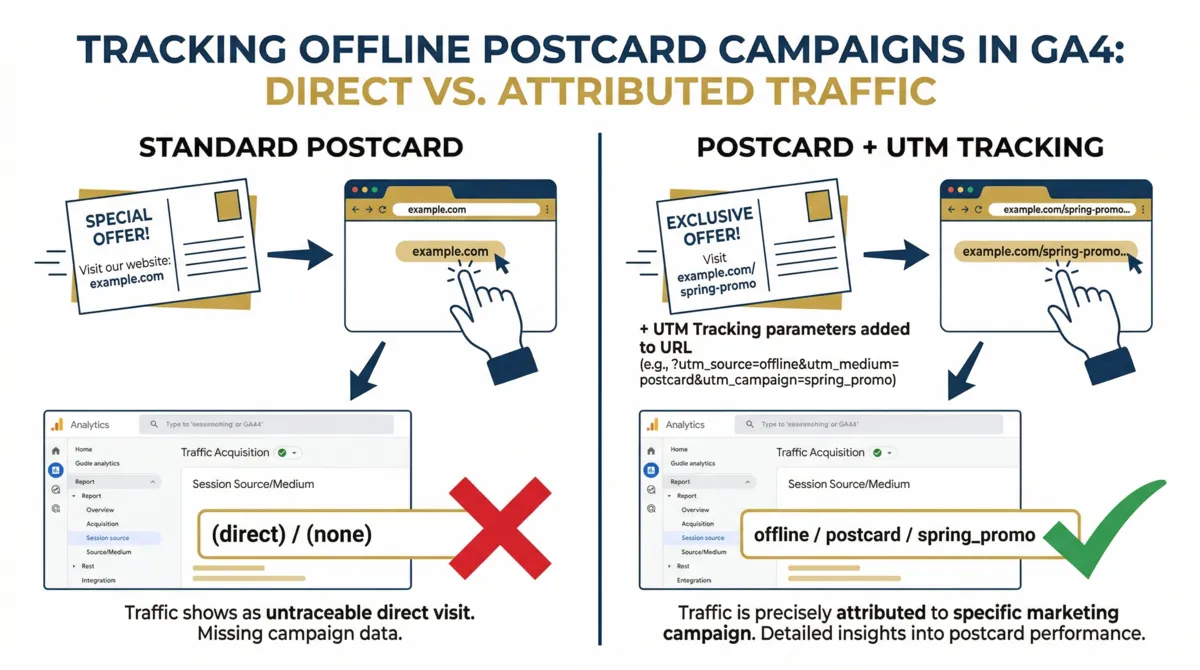
Google Analytics 4 is built to read digital referrers — search queries, ad clicks, social shares. When someone reads a postcard and types a URL into their phone, GA4 receives no signal about where that visit came from. The result: all your direct mail traffic gets dumped into the "(direct) / (none)" bucket alongside people who typed your URL from memory or bookmarks.
This creates a specific problem. When you look at GA4 acquisition reports and see a spike in direct traffic after a mail drop, you can't prove it came from the campaign. Your CFO sees unattributed traffic. Your mail vendor doesn't get credit. And you can't calculate ROI.
The fix is a system: UTM parameters that force GA4 to categorize the traffic correctly, combined with redirect infrastructure that makes those UTMs printable on a postcard.
Building UTM Parameters for Physical Mail
UTM parameters are text strings you append to a URL. When GA4 sees them, it categorizes the session exactly as you specify — overriding the default "(direct)" classification entirely.
For direct mail, four parameters matter:
| Parameter | What It Does | Recommended Value |
|---|---|---|
| utm_medium | The marketing channel | offline |
| utm_source | The specific format | postcard, letter, flyer |
| utm_campaign | The campaign name | spring_promo_2026 |
| utm_content | Creative variant (for A/B tests) | ceo_letter, discount_20 |
A correctly built direct mail UTM URL looks like this:
https://yourdomain.com/landing-page/
?utm_medium=offline
&utm_source=postcard
&utm_campaign=spring_promo_2026
&utm_content=discount_offer_20
Interactive UTM Builder
Enter your campaign details below to generate a tracking URL ready to paste into your redirect or QR code platform.
Direct Mail UTM Builder
Fill in your details — the tool builds the tagged URL automatically.
Vanity URLs — The Redirect-First Approach
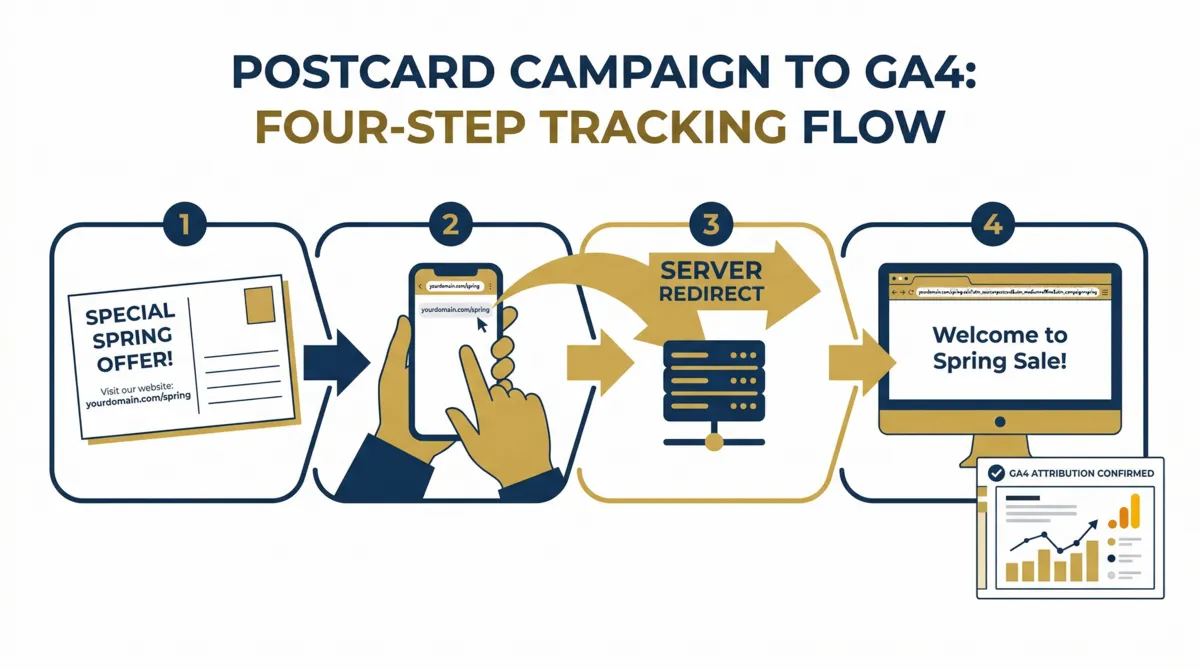
A UTM-tagged URL is over 100 characters long. Nobody types that from a postcard. The redirect-first approach solves this: print a short, memorable URL on the mail piece, and have your website silently forward visitors to the full UTM URL.
✓ What your server redirects to: yourdomain.com/landing-page/?utm_medium=offline&utm_source=postcard&utm_campaign=spring_2026
The recipient types the short URL. Your server executes the redirect in milliseconds. GA4 reads the UTM parameters from the final resolved URL and attributes the session correctly. The visitor never sees the long URL.
Setting up redirects requires no developer. Every major CMS has a built-in tool:
- 1WordPressInstall the free "Redirection" plugin. Map the short path (/spring) to the full UTM URL in the graphical interface.
- 2ShopifyGo to Navigation → View URL Redirects. Add the vanity path and paste the UTM URL. Note: Shopify blocks paths starting with /products or /collections.
- 3SquarespaceSettings → Developer Tools → URL Mappings. Add the short path and destination URL.
- 4WixSettings → SEO → URL Redirect Manager. Add source and destination URLs.
Dynamic QR Codes vs Static QR Codes
QR codes eliminate the friction of manual URL entry. A scan is the equivalent of a click. But not all QR codes work the same way for tracking — and using the wrong type can cost you the entire campaign's attribution.
| Feature | Static QR Code | Dynamic QR Code |
|---|---|---|
| Destination URL | Permanently baked in | Editable after printing |
| If URL has a typo | Reprint entire run | Fix in dashboard instantly |
| Scan analytics | None | Time, location, device type |
| Per-recipient unique codes | Not possible | Yes — one per household |
| GA4 attribution | Only if URL has UTMs | Full UTM support |
| Cost | Free | Paid platform (Lob, QR Tiger, etc.) |
For any professional direct mail campaign, dynamic QR codes are the correct choice. The key setup step: whatever destination URL you configure inside the QR platform must include your full UTM string. Use utm_source=qr and utm_medium=offline so GA4 records QR scans as a separate traffic source from manually-typed vanity URLs in the same campaign.
Landing Page Setup for Mail Traffic
Routing direct mail traffic to your homepage is one of the most common and costly mistakes in direct mail attribution. Visitors arrive looking for the specific offer from the postcard — if they can't find it immediately, they leave. Your tracking data shows a visit with no conversion, and you conclude the campaign failed.
Every direct mail campaign needs a dedicated landing page. Four rules that matter:
- 1The 5-Second Match RuleThe headline, image, and offer on the landing page must exactly mirror the postcard copy. If the postcard says "Free Roof Inspection," the page headline must say "Claim Your Free Roof Inspection." No detours.
- 2Remove NavigationDelete the header menu, footer links, and any clickable element that isn't the conversion action. The visitor has one choice: convert or close.
- 3Mobile-First LayoutMost recipients scan QR codes on their phones. Short paragraphs, bold subheadings, and a large tap target for the CTA button are non-negotiable.
- 4Hide the Page From SearchAdd a noindex meta tag so the landing page doesn't appear in Google search results. You want all traffic to this page attributed to the campaign, not organic search.
Configuring GA4 for Offline Attribution
Even with perfect UTMs in place, GA4 may still misclassify your direct mail traffic as "Unassigned" because its default channel groupings don't know what utm_medium=offline means. Three configuration steps fix this permanently.
Step 1 — Create a Custom Channel Group
- 1Go to GA4 Admin → Data Display → Channel Groups
- 2Create a new channel group (or edit a copy of the default)
- 3Add a new channel named "Direct Mail" or "Offline Advertising"
- 4Set condition: Medium → exactly matches → offline
GA4 takes 24–72 hours to retroactively categorize historical traffic into the new channel grouping.
Step 2 — Mark Conversions as Key Events
GA4 renamed "Conversions" to "Key Events" in 2024. Any form submission or purchase on your landing page must be marked as a Key Event for ROI calculation to work. Go to Admin → Data Display → Events, find your form submission event, and toggle "Mark as key event."
Step 3 — Import Campaign Costs via CSV
To calculate actual ROI inside GA4, you must tell it what the campaign cost. Go to Admin → Data Import → Create Data Source → select Cost Data. Upload a CSV with these columns: Date, utm_source, utm_medium, utm_campaign, and Campaign Cost. GA4 joins the cost data to your traffic data using campaign name and date as matching keys.
Direct Mail ROI Calculator
Use this calculator to estimate your campaign ROI before you send a single piece — or to verify your GA4 figures against a manual calculation.
Campaign ROI Calculator
Enter your campaign figures to calculate expected return.
Call Tracking with CallRail
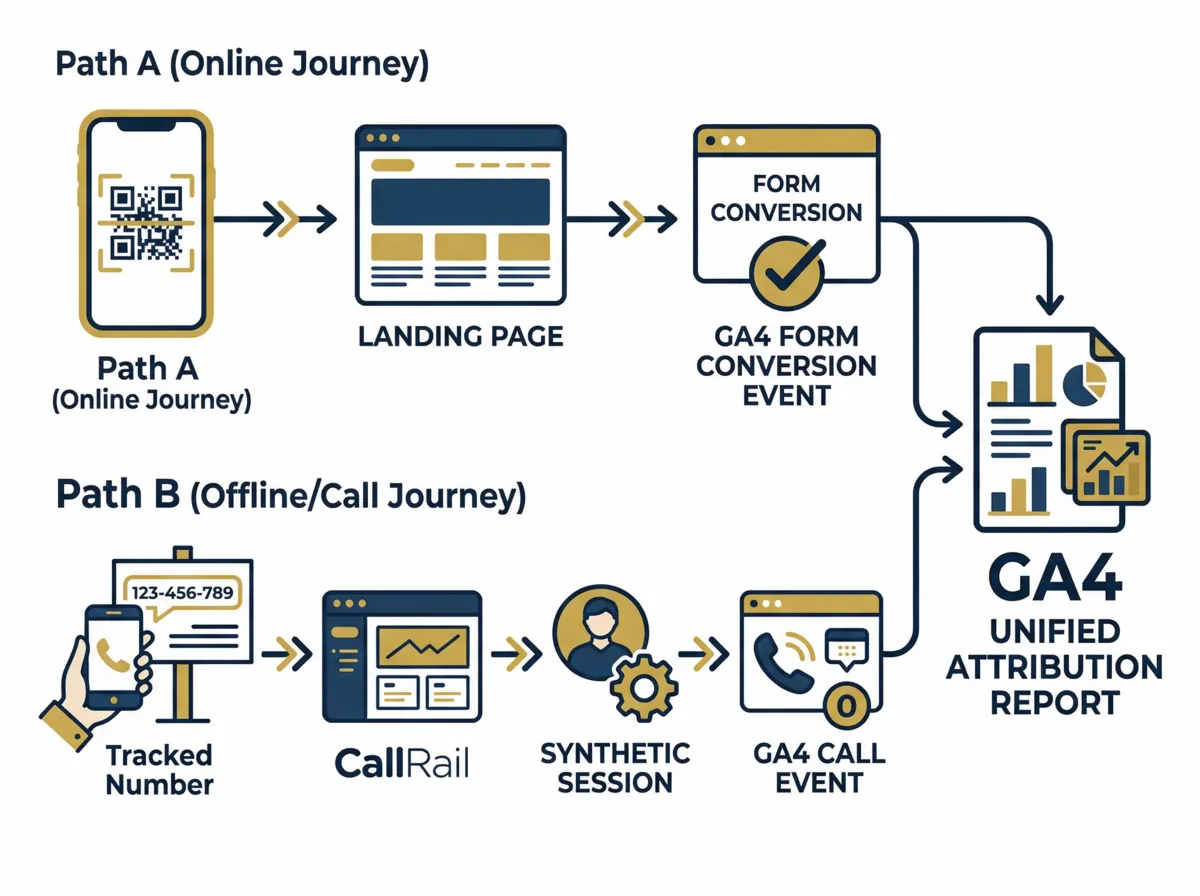
For service businesses, most direct mail responses come as phone calls, not web form submissions. If someone reads your postcard and dials your main number, that conversion is invisible to GA4. CallRail closes this gap with Source Trackers — unique phone numbers printed exclusively on specific mail pieces.
When a prospect calls the tracked number, CallRail routes the call to your real business line, records the source, and pushes a synthetic web session into GA4 — making the phone call appear in your acquisition reports alongside form submissions.
| CallRail Event Parameter | GA4 Custom Dimension | What It Tracks |
|---|---|---|
| source | Event scope | Specific mail piece format |
| medium | Event scope | Offline channel attribution |
| campaign | Event scope | Campaign name |
| tracking_number | Event scope | Exact source tracker dialed |
| call_duration | Custom metric | Lead quality indicator |
USPS Informed Delivery Integration
USPS Informed Delivery emails subscribers a daily digest of grayscale scanned images of their incoming mail — before the physical piece arrives. Businesses can upgrade this into a clickable digital ad by creating an Informed Delivery Interactive Campaign through the USPS Mailer Campaign Portal.
The setup: a full-color "Ride-Along Image" (max 300x200px, JPEG, under 200KB) appears below the grayscale scan in the subscriber's email. When they click it, they go to a UTM-tagged landing page. Use utm_source=informed_delivery and utm_medium=email to separate pre-arrival clicks from post-arrival QR scans in GA4.
Real Case Studies
Peak Family Dentistry — Healthcare Lead Attribution
1,175% ROIPeak Family Dentistry deployed targeted postcards to local demographics, tracking inbound responses through dedicated phone numbers and UTM-tagged landing pages. Over six months, the attribution infrastructure connected physical mail costs directly to booked appointments and patient revenue.
VentureStack Real Estate — QR + Retargeting
8.3x ROASVentureStack used dynamic QR codes on personalized postcards routing prospects to dedicated landing pages. When recipients scanned but didn't convert, the GA4 event triggered Facebook Pixel and Google remarketing tags — automatically launching digital retargeting ads to high-intent physical mail recipients.
thredUP — A/B Testing Physical Copy With Digital Data
+128% ROI liftthredUP ran a dormant customer reactivation campaign with two postcard variants. Version A had a personalized CEO letter (utm_content=ceo_letter). Version B had a bulleted reasons list (utm_content=bullet_list). GA4 data showed the CEO letter significantly outperformed. By shifting budget to the winning variant, overall campaign ROI increased 128%. Attribution data also revealed that unsubscribed email customers converted at higher rates via mail than active email subscribers.
Frequently Asked Questions
GA4 only reads digital referrers — search engines, ad networks, social platforms. When someone types a URL from a postcard or scans a QR code without UTM parameters, GA4 has no signal about where the visit originated and defaults to "(direct) / (none)." The fix is UTM parameters on every URL used in your mail campaign, combined with a Custom Channel Group in GA4 that recognizes utm_medium=offline as a distinct channel.
A static QR code permanently bakes the destination URL into the printed image. If there's a typo in the URL, or if the offer changes after the mail is sent, the code is broken and requires a full reprint. A dynamic QR code points to a redirect URL managed by the QR platform. You can update the destination URL at any time without changing the printed code. For tracking purposes, dynamic codes also capture scan time, location, and device type independently of GA4.
Yes, using call tracking software like CallRail. You print a unique tracking phone number on the mail piece — a "Source Tracker." When a prospect calls that number, CallRail routes the call to your real business line and simultaneously generates a synthetic web session in GA4, making the phone call appear in your acquisition reports alongside form submissions. The call is attributed to the exact campaign, source, and medium specified in your CallRail configuration.
GA4 has a Data Import feature that accepts cost data via CSV upload. Your CSV needs five columns: Date, utm_source, utm_medium, utm_campaign, and Campaign Cost. Go to GA4 Admin → Data Import → Create Data Source → select Cost Data. Upload the CSV and map the columns. GA4 joins the cost data to your traffic data using campaign name and date as matching keys. Once imported, you can view cost alongside revenue in GA4 Explorations to calculate actual ROI.
USPS Informed Delivery emails subscribers daily grayscale scans of their incoming mail before it arrives. Businesses can create an Interactive Campaign through the USPS Mailer Campaign Portal, adding a clickable full-color image below the scan. When subscribers click this image, they go to your UTM-tagged landing page. By using utm_source=informed_delivery, you can separately track pre-arrival engagement from post-arrival QR scans in GA4 — giving you multi-touch attribution across a single mail drop.
Standard UTM-tagged session data appears in GA4 reports within a few hours of the first visit. Custom Channel Group changes — where you tell GA4 to classify utm_medium=offline as "Direct Mail" — take 24–72 hours to process and retroactively categorize historical data. Imported cost data via CSV typically processes within 24 hours. If you're running a time-sensitive campaign, set up the GA4 configuration at least three days before your expected mail delivery window.